
Practical image workflow
Image Upscaler for Printing
Check the pixel dimensions you need before enlarging an image for print. Calculate physical size, choose a scale in the local upscaler, and inspect the exported file at its intended placement size.
Open image upscalerCalculate size from your pixels
Enter the actual file dimensions. Inches = pixels ÷ PPI. This does not change your image.
- 300 PPI: 4.00 × 2.67 inches (10.16 × 6.77 cm)
- 150 PPI: 8.00 × 5.33 inches (20.32 × 13.55 cm)
Ask your printer which PPI is appropriate. These sizes do not include bleed or cropping and do not certify print quality.
Reproduce the examples
Download each source and compare your result with the actual tool output. The colored display surface is behind the PNG; it is not added to the downloadable file.
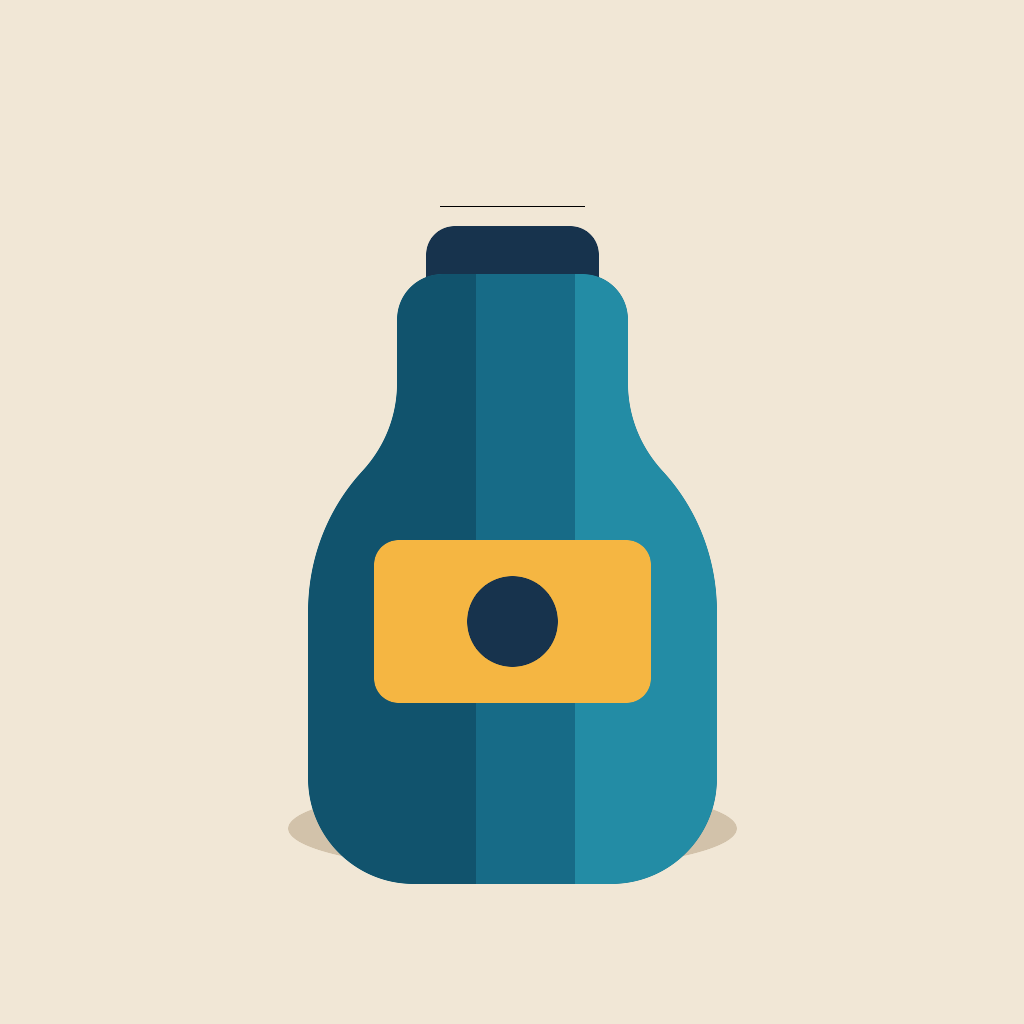
1024 × 1024 source
Synthetic bottle diagnostic; 3.41 inches at 300 PPI.
Download 1024 × 1024 source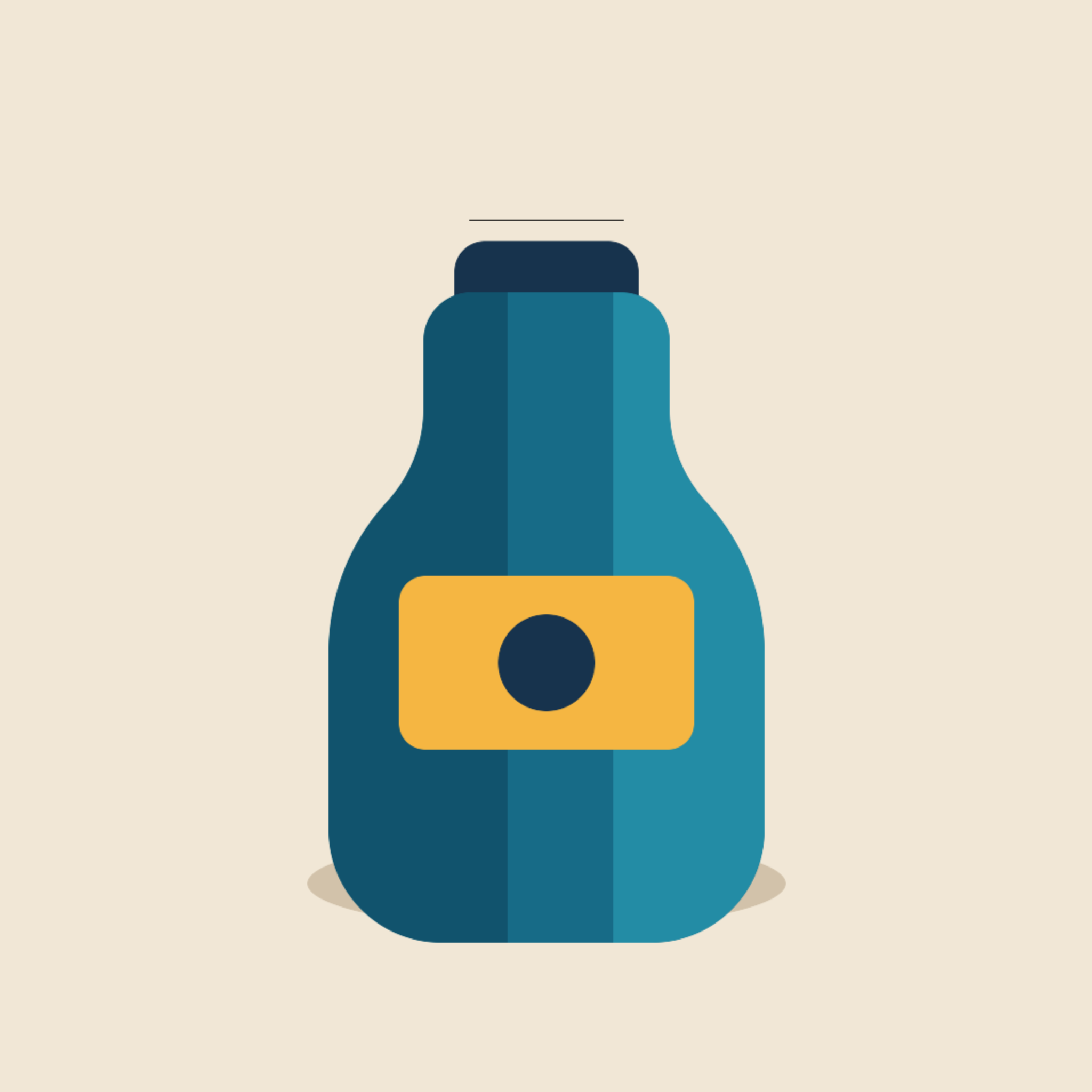
2048 × 2048 download
Actual 2x output; 6.83 inches at 300 PPI.
Download 2048 × 2048 download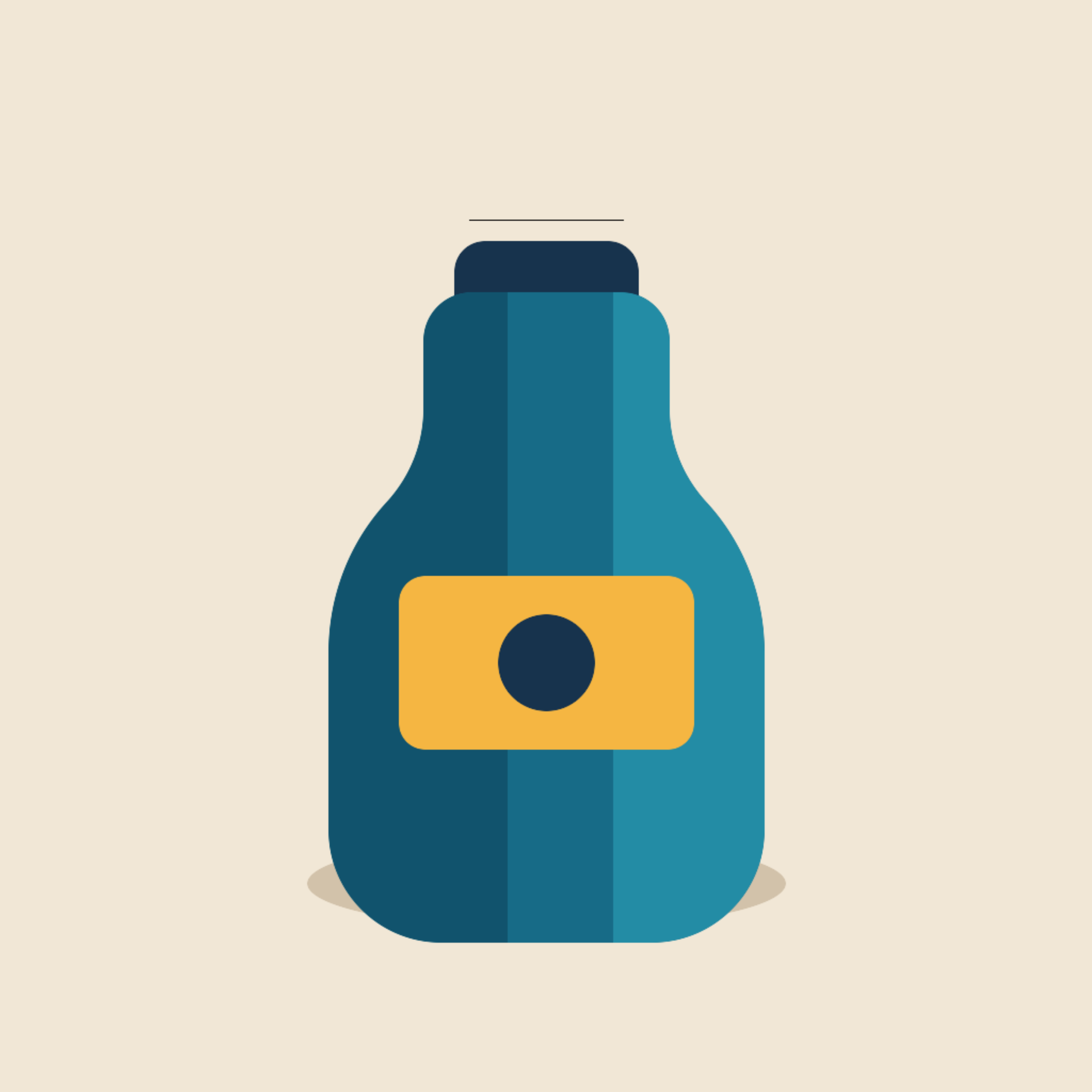
4096 × 4096 download
Actual 4x output; 13.65 inches at 300 PPI.
Download 4096 × 4096 download1. Start with the finished size
Write down the trim width and height in inches, then ask your printer about bleed, image resolution, and file format. PPI describes image pixels per printed inch; the printer’s DPI describes its output dots. They are not interchangeable. A 6 × 4 inch image at 300 PPI needs 1800 × 1200 pixels before any extra bleed. The calculator below compares 150 and 300 PPI as planning values, not as a quality guarantee.
2. Count pixels, not the resolution label
Divide pixel width and height by the chosen PPI to get the available print dimensions. A 1200 × 800 image spans 4 × 2.67 inches at 300 PPI, or 8 × 5.33 inches at 150 PPI. Changing a file’s PPI label alone does not create new pixels. Check the actual downloaded dimensions instead of relying on a file-properties resolution field.
3. Choose a scale that fits the crop
If both dimensions need doubling, try 2x; 4x creates four times the width and height and sixteen times the pixel count. Our browser upscaler caps output at 8192 pixels per side and 40 million pixels in total. A different print aspect ratio still needs cropping or borders: enlargement will not turn a 3:2 photo into a square without losing content or adding space.
4. Compare these actual downloads
The three files below are the original diagnostic bottle drawing and actual 2x/4x tool downloads. Their dimensions are 1024, 2048, and 4096 pixels square. At 300 PPI those correspond to 3.41, 6.83, and 13.65 inches. The drawing is a synthetic test source, not a photographed product or a physical print test. Download it to reproduce the pixel calculations and inspect interpolation around its edges.
5. Keep detail expectations realistic
This upscaler uses browser resampling; it does not reconstruct unreadable lettering, restore facial detail, or run an AI model. More output pixels let you place a larger raster, but they do not prove a sharper print. Start from the highest-resolution original available. For type and logos, a vector master or a fresh export from the original design often gives a more reliable result than enlarging a screenshot.
6. Export for the actual layout
Choose PNG when you need transparency, or JPEG for a flattened image if your printer accepts it. The tool processes the selected file locally, but its canvas export is not a professional color-management or metadata-preservation workflow. Place the download at the final size in your layout application, check effective PPI after cropping, and follow the printer’s color profile and PDF delivery requirements there.
7. Approve a proof before a full run
Inspect fine lines and labels at the intended print size and order or make a small physical proof when the result matters. A browser preview cannot predict paper texture, ink spread, color conversion, or viewing distance. If the proof looks soft, reduce the print size or replace the source; increasing the resampling factor again is not evidence that missing information has returned.
Questions before exporting
Does upscaling guarantee print quality?
No. It increases pixel dimensions by interpolation. Judge a proof at the final size and use the best original available.
Does this tool set my file to 300 PPI?
It changes pixel dimensions. Set physical placement size and effective PPI in your print layout application; do not rely on the export metadata.
Can I use 150 PPI?
The calculator shows that planning value. Ask your printer whether it fits the process and viewing distance; it is not a universal recommendation.
Further reading: Adobe: print resolution guidance.