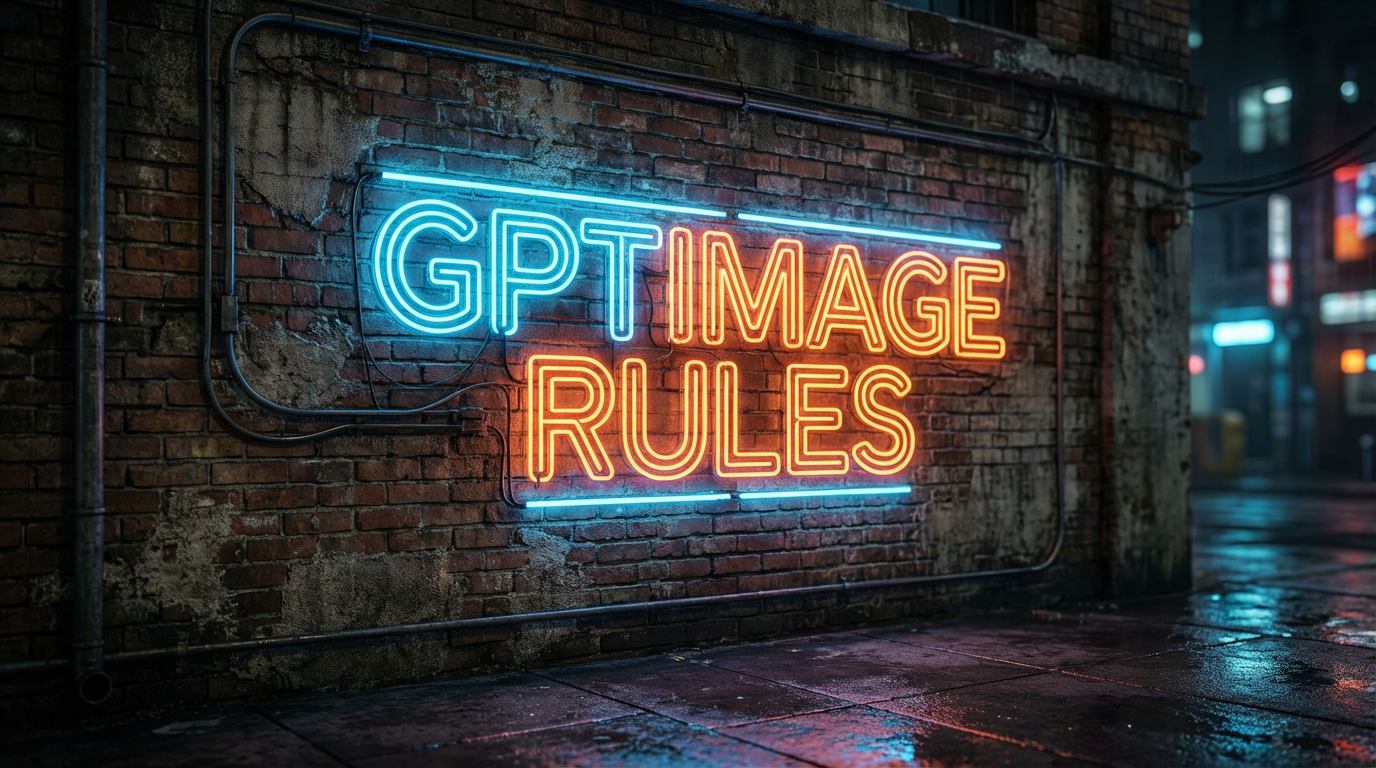
Neon lettering
Check line edges and brick texture before using an enlarged graphic.
 GPTImage.app
Enlarge product shots, illustrations, screenshots, and generated art without sending the source file to our server. This image upscaler shows the exact output dimensions before processing, then lets you preview and download the result.
JPG, PNG, or WebP · up to 20 MB
Inspect the complete output before downloading.
Your original image and finished upscale will appear here.
Each “before” below is a deliberately downsampled copy of the matching source image. The examples make pixel density easy to inspect; they are not presented as generated customer results.
Check line edges and brick texture before using an enlarged graphic.
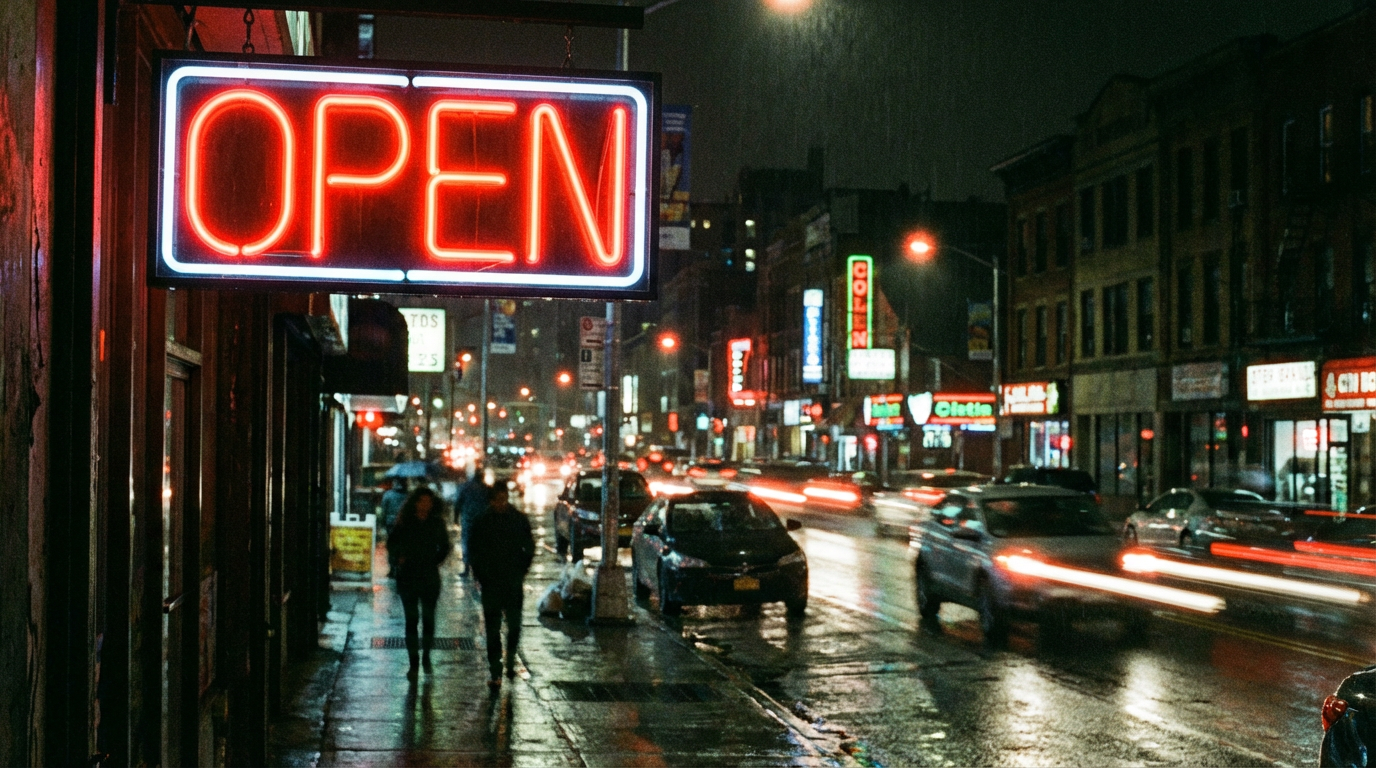
Compare small light sources, reflections, and low-light grain.
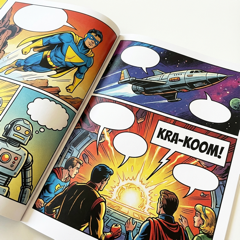
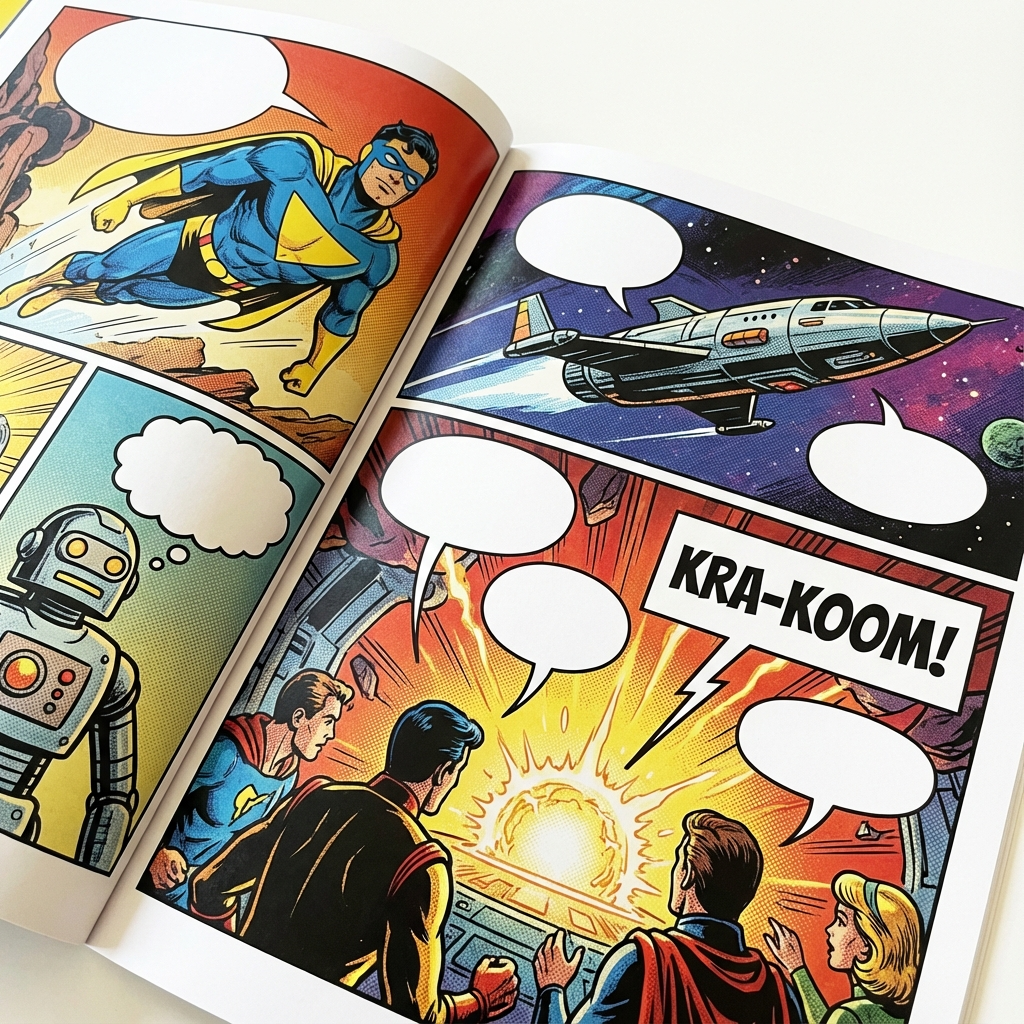
Inspect ink contours and halftone patterns at a larger display size.
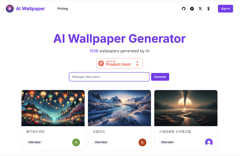
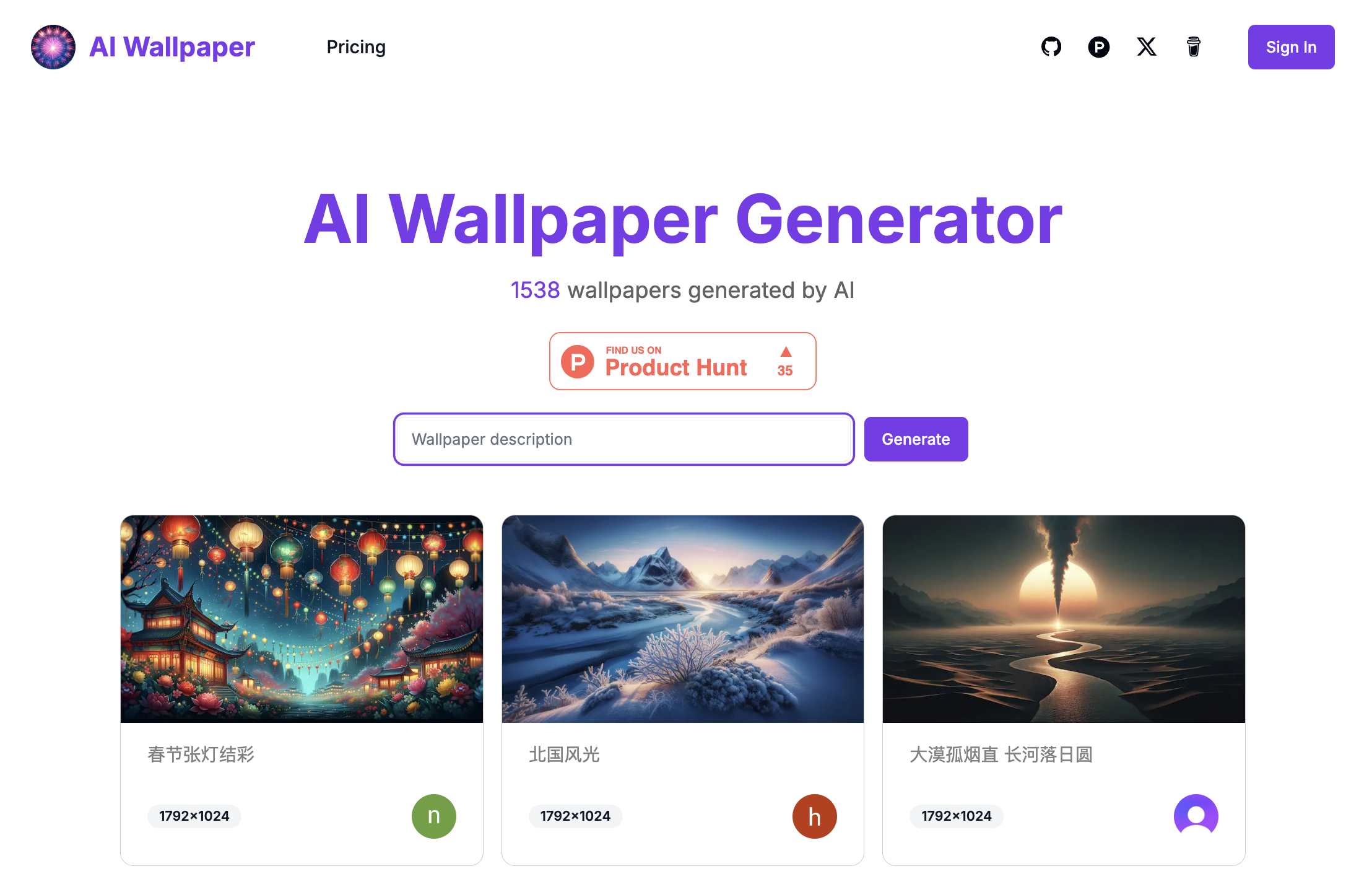
Enlarge a small screenshot while keeping its original composition intact.
Choose a JPG, PNG, or WebP file. The image remains in your browser throughout the standard image upscaler workflow.
Review the calculated pixel dimensions first. Use 2x for routine web assets and 4x for genuinely small originals.
Inspect the result at the size you plan to use, then export a PNG or high-quality JPEG with a descriptive filename.
Enlarging an image creates additional pixels so the file can be displayed or printed at a larger size. This tool uses the browser’s high-quality interpolation to keep gradients and diagonal edges smoother than a nearest-neighbor resize. It does not verify or recover visual information that the camera or original artwork never captured.
That distinction matters when comparing an image upscaler with an AI image upscaler. AI enhancement may synthesize plausible hair, skin, lettering, or texture, but those additions can be inaccurate. Use a faithful resize for logos, evidence, archival scans, and product details that must not change.
Choose the right method
An AI image upscaler and a conventional resize solve different problems. The local tool above uses browser interpolation: it increases the pixel dimensions while keeping the composition and recorded content unchanged. A generative AI model may add plausible texture, clean compression artifacts, or redraw edges, but those changes are estimates.
| Method | What changes | Use it when | Main risk |
|---|---|---|---|
| 2x interpolation | Width and height double; content stays faithful. | The source is already usable and needs moderate enlargement. | Softness becomes easier to see at 100% zoom. |
| 4x interpolation | Each axis quadruples; total pixels increase sixteenfold. | A small source must reach a known pixel target without redrawing. | Compression blocks and blur are enlarged too. |
| Generative AI upscale | A model may synthesize texture and alter local shapes. | Plausible enhancement matters more than pixel-faithful evidence. | Small text, faces, products, or archival details may change. |
Start from the final dimensions instead of choosing the largest setting by default. The2x vs 4x image upscaling guideincludes a dimension calculator, reproducible outputs, and a checklist for choosing the smaller sufficient scale.
For the complete source-to-export process, follow theimage quality preservation workflowand check every result at 100% zoom and at its intended delivery size.
No. The standard 2x and 4x workflow runs locally in your browser. Closing the tab clears the working preview from the page.
No enlargement method can verify details that were never captured. This tool creates more pixels with high-quality interpolation without claiming invented texture is original detail.
Open JPG, PNG, and WebP files. Export the result as PNG when you need transparency or JPEG when a smaller photographic file is more useful.
Choose 2x for most web and marketplace images. Choose 4x for small originals only after checking the output dimensions and browser limit shown in the tool.
No. This tool uses local browser interpolation to enlarge the recorded pixels without generating new visual details. Use the decision table above to compare it with generative AI enhancement.
Large canvases can exhaust memory on phones and older laptops. The guardrail keeps processing predictable and prevents the tab from attempting an unsafe allocation.
Remove a simple background or unwanted lettering before enlarging, or create a new image at the composition you need.