Confirm your rights
Use a photo or design you own or have permission to modify. Do not remove ownership marks to conceal attribution.
 GPTImage.app
Upload an image you are authorized to edit, run one whole-image removal pass, and inspect the generated fill before downloading it. Covered pixels are reconstructed from context, not recovered from the source.
Drop image here or click to upload
JPG, PNG, or WebP · up to 3 MB
Drag the comparison control or use the arrow keys. This pair demonstrates the workflow; it is not a customer result or a promise that every background will match.
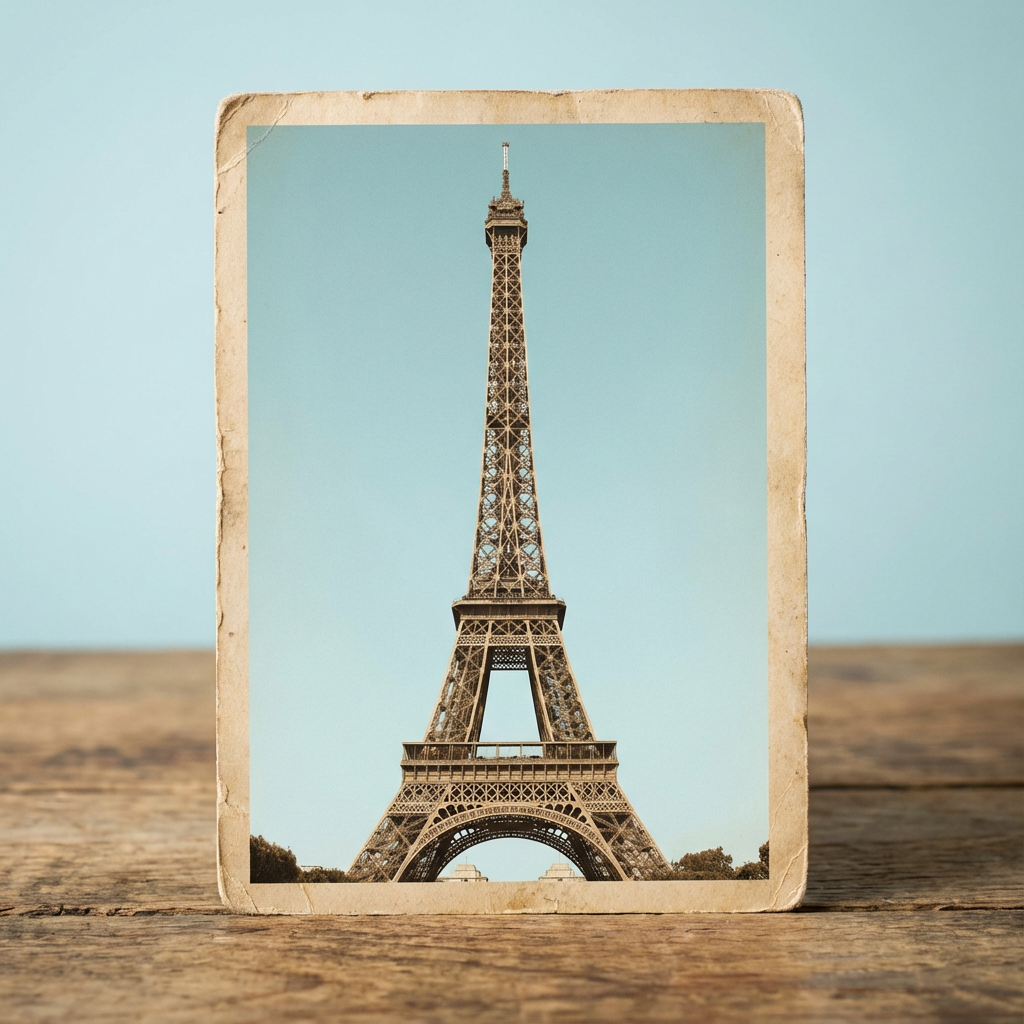
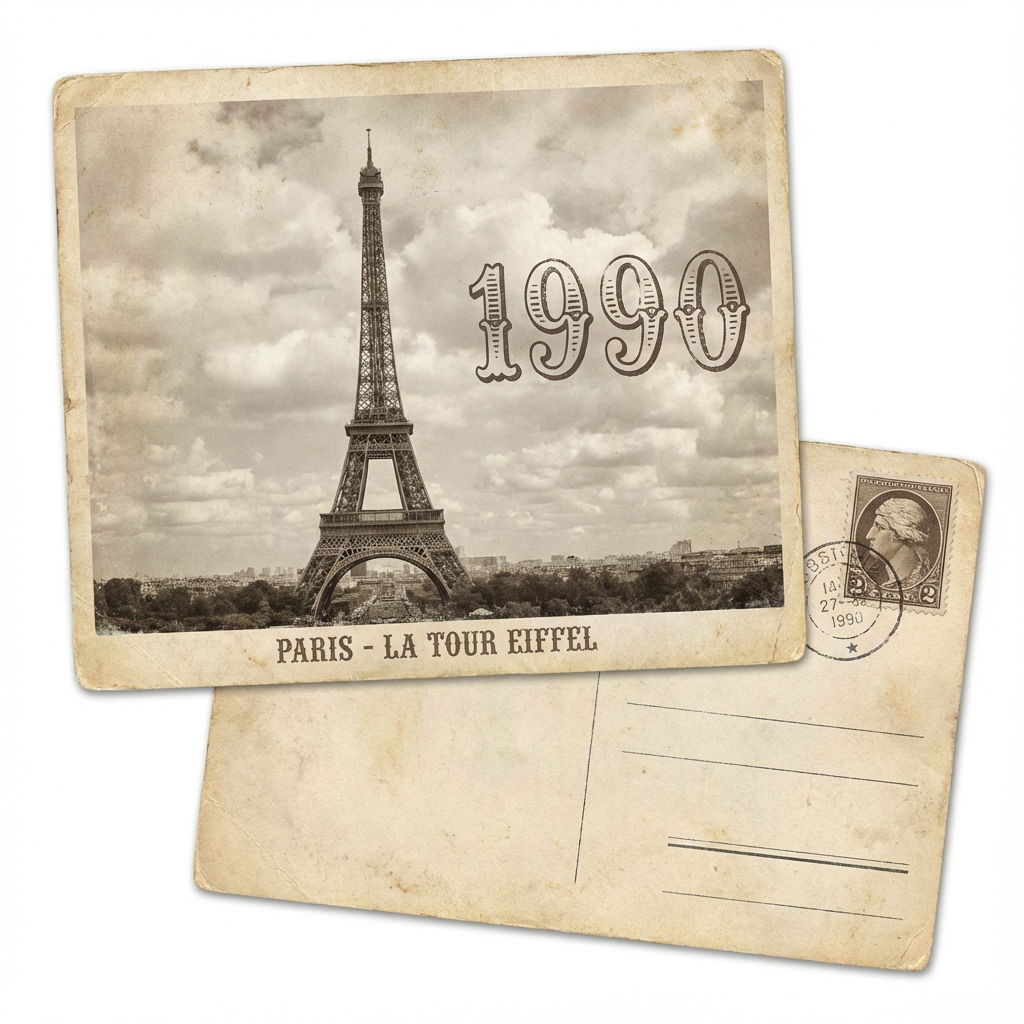
The current tool sends the uploaded image with one instruction to remove visible text. The model generates a plausible replacement using the remaining scene as context, so details near the edited area can change.
The model estimates a replacement from visible surroundings. It cannot reveal the original pixels hidden behind the lettering.
The current workflow asks the model to remove visible text across the uploaded image in one pass. Review the result before using it.
Finish the text-removal pass first, then use our image upscaler when you need larger pixel dimensions.
Open the image upscaler →
Use the tool for photos and designs you own or have permission to modify—for example, outdated captions, your own date stamps, draft labels, or translation text. AI reconstruction can vary on faces, fine patterns, and text that overlaps important objects, so inspect every result closely.
Use the smallest clean source that contains the detail you need, then keep the untouched file beside the generated result so every change remains reviewable.
Use a photo or design you own or have permission to modify. Do not remove ownership marks to conceal attribution.
Select a JPG, PNG, or WebP no larger than 3 MB. A compressed screenshot gives the model less reliable context.
Sign in if prompted, then start the removal. The image is uploaded to the service and processed by the configured image model; this is not an on-device workflow.
Compare faces, text edges, patterns, architecture, and product details at full size. Download only a result that is acceptable for your intended use.
Upload a JPG, PNG, or WebP image, run the removal pass, and compare the generated result with the original. The tool is designed for unwanted captions, date stamps, labels, and other text on images you are authorized to edit.
The model generates a replacement for the area covered by text using nearby visual context. Results are not guaranteed to match the hidden original pixels, especially on faces, repeating patterns, small product details, or complex typography. Keep the original file and review the output at full size.
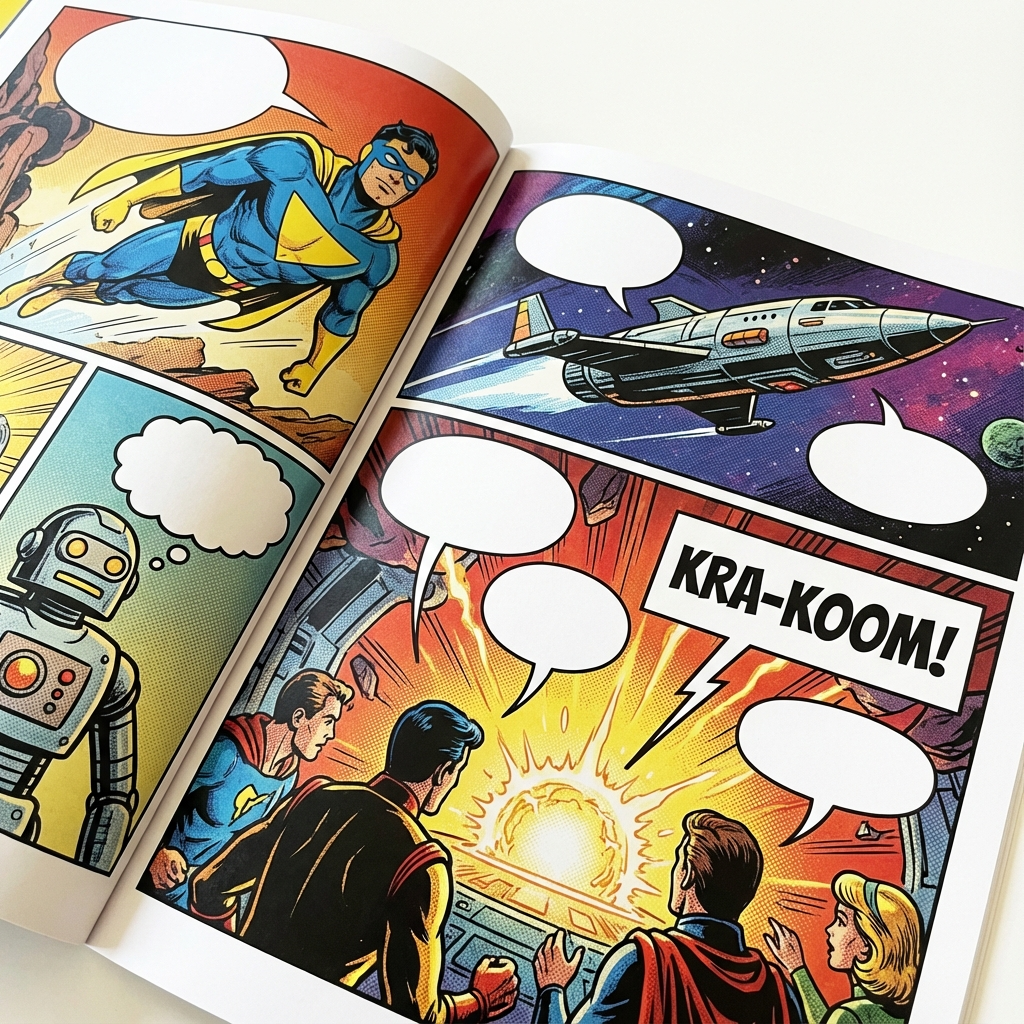
Translators and comic creators can use the tool to prepare speech bubbles and text overlays for a new language. Upload the page and run a whole-image removal pass, then review each panel before adding replacement lettering.
Simple text on a flat speech bubble is usually easier than sound effects laid over detailed art. Complex shapes may need a second edit in a dedicated graphics tool; the page does not promise pixel-perfect recovery of obscured artwork.
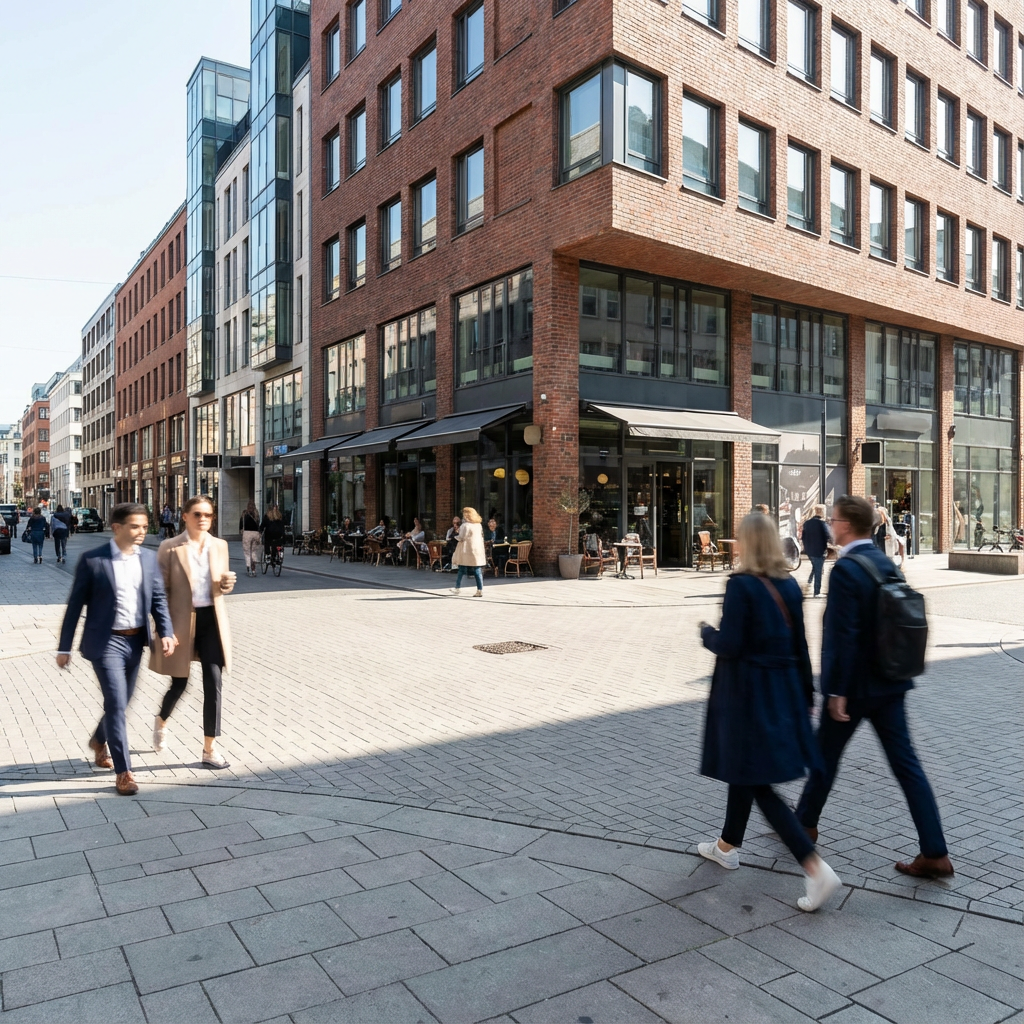
Street photography captures the essence of urban life, but sometimes a distracting road sign, trash can, or accidental photobomber ruins the composition.
The text-removal prompt can rebuild the area around a sign or caption, but it may alter nearby architecture or objects. For real-estate and documentary images, compare the result with the source and avoid edits that could misrepresent the scene.
You should only remove watermarks from images you own or have the right to modify. Removing watermarks from copyrighted material may infringe on the creator's rights.
Not necessarily. The model generates a plausible replacement from visible context; it cannot recover pixels that are fully covered by text. Always compare the output with the source.
The tool accepts JPG, PNG, and WebP images. Convert only an authorized PDF page to a supported image format before using it.
Yes. The image is uploaded to the service and sent through the configured image-generation workflow. Do not upload confidential or sensitive material.
Choose a JPG, PNG, or WebP image no larger than 3 MB.
Remove a plain or gently varying background locally in your browser, or enlarge the reviewed text-removal result for a larger layout.