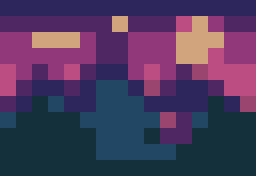
16px setting
4–8 colors16 × 11 output from the 3:2 source
Tiny icons, badges, simple inventory objects, bold silhouettes
Fast to read and edit, but facial features and texture disappear quickly.
 GPTImage.app
Practical sprite planning
Grid size decides how much visual information a sprite can hold. This guide compares three common logical sizes using one disclosed source, then separates logical pixels from display scale so you can plan icons, characters, and props without accidental blur.
A 32x32 sprite contains 1,024 possible logical pixel positions even if you export it as a 384x384 PNG for a website. The larger file can still represent 32x32 art when each original pixel is repeated as a 12x12 block. Keeping those two measurements separate prevents you from adding detail that the game grid cannot actually support.
Use the smallest canvas that preserves the subject’s defining silhouette. If a hat, tool, facial direction, or limb position becomes ambiguous, move up one grid size or simplify the design. Do not jump to 64x64 only because the preview looks sharper; every extra cluster increases cleanup and animation work.
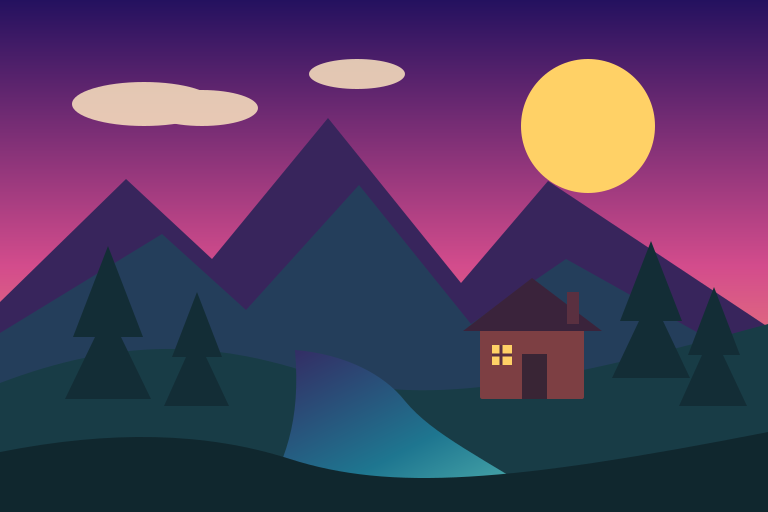
The examples use the same landscape, an aspect-ratio-preserving longest edge, and an increasing palette. They demonstrate information loss at each grid; they are not claimed as hand-drawn artwork or user results.
16 × 11 output from the 3:2 source
Tiny icons, badges, simple inventory objects, bold silhouettes
Fast to read and edit, but facial features and texture disappear quickly.
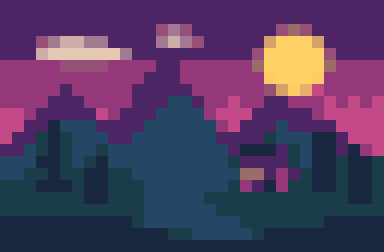
32 × 21 output from the 3:2 source
Character sprites, avatars, props, and readable UI art
A practical balance between recognizable shapes and manageable cleanup.
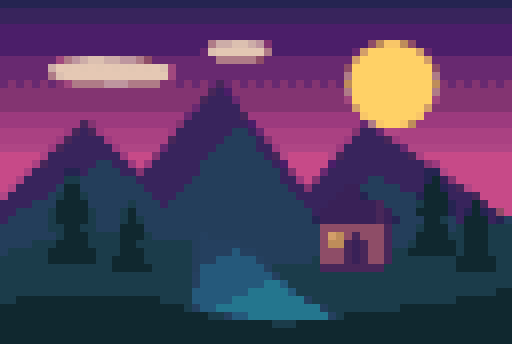
64 × 43 output from the 3:2 source
Portraits, larger props, detailed characters, and scene studies
Keeps more shading, but takes longer to refine and animate consistently.
Choose 16x16 when a bold contour matters more than internal detail. Inventory icons, map markers, status symbols, and tiny enemies benefit from a strict limit because the artist must remove weak shapes. Test the sprite at its actual in-game size: if two items collapse into the same silhouette, color changes alone may not separate them reliably.
A 32x32 canvas allows a readable pose, a face direction, and a small number of material cues without turning every frame into a large illustration. It is forgiving for beginners, but the sprite does not need to touch all four sides. Leave transparent space for movement, weapons, hair, or effects, and keep the occupied bounds consistent across an animation.
At 64x64, portraits and larger props can hold secondary forms, controlled texture, and smoother curved outlines. The cost is consistency: one character can require four times as many pixel positions as a 32x32 canvas before animation frames are counted. Use the extra area intentionally, not to preserve photographic noise from an automatic conversion.
Palette limits and canvas limits solve different problems. Resolution controls shape; palette size controls value grouping and color relationships. Four to eight colors can be enough at 16x16, while 32x32 often supports eight to 16. A 64x64 reference may use 32, but adding colors does not restore structure that vanished during downsampling.
Check the result in grayscale to see whether the subject still separates from the background. Reuse a small set of shadow and highlight colors across sprites when they share a scene. Automatic palette reduction groups source colors mathematically; a human pass should merge distracting near-duplicates and keep the game’s visual system coherent.
Scale pixel art by whole numbers with nearest-neighbor interpolation. A 32x32 sprite at 8x becomes 256x256; at 12x it becomes 384x384. Fractional scaling asks the renderer to distribute one logical pixel across uneven screen pixels, which produces inconsistent block widths or blur. Preserve an original logical-size copy even when a platform needs a larger preview file.
This nearest-neighbor rule is specific to pixel art. For photographs and smooth illustrations, compare the browser-smoothed outputs in the2x vs 4x image upscaling guideinstead of preserving hard pixel blocks.
Record the sprite’s expected on-screen size before drawing a large source.
Test the subject at 16 or 32 pixels using only a few values.
List the pose, tool, face direction, or emblem that must remain recognizable.
Choose 64 pixels when simplifying cannot preserve a required feature.
Start below the maximum color count and add colors for a specific purpose.
Use an integer scale, disable smoothing, and test the asset in its real interface.
A 32x32 grid is usually more forgiving because it leaves room for a readable silhouette and a few internal details. Use 16x16 when deliberate simplification is the exercise.
No. The canvas can be 32x32 while the sprite occupies a smaller area with transparent breathing room. Consistent occupied bounds matter more than filling the square.
Use a whole-number scale such as 4x, 8x, or 12x with nearest-neighbor interpolation so each logical pixel becomes an equally sized sharp block.
They should share a coherent world scale and pixel density, but a large boss, small item, and portrait may use different canvas dimensions. Document the scale rules before producing many assets.
Run the same source through 16, 32, and 64-pixel settings, then choose the smallest grid that preserves the silhouette and features your project actually needs.
Open the pixel art maker