
Verified alpha workflow
Pixel Art Transparent Background
Convert a real transparent source at three logical grid sizes, keep the PNG alpha channel, and check the downloaded edge before the sprite enters a game, website, or editor.
Open the pixel art makerOne source, three real PNG downloads
The checkerboard is the page background behind each PNG, not content baked into the files. Every example can be downloaded and checked independently. The source is synthetic diagnostic art, not customer artwork or a quality benchmark.

480 × 320 transparent source
Synthetic browser drawing with clear, partly transparent, and opaque pixels.
Download PNG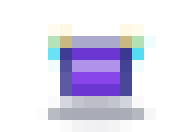
16 × 11 logical grid
Actual 192 × 132 PNG download at 12× display scale.
Download PNG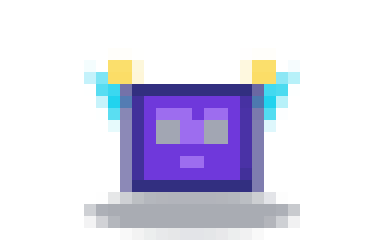
32 × 21 logical grid
Actual 384 × 252 PNG with the same palette and export settings.
Download PNG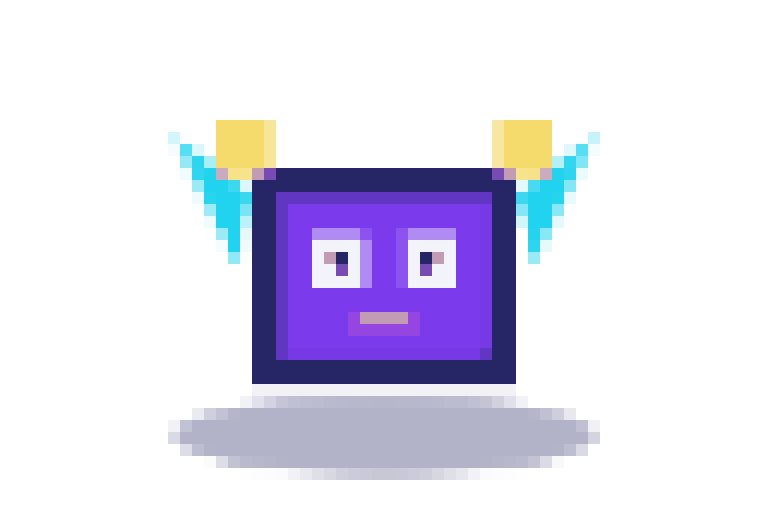
64 × 43 logical grid
Actual 768 × 516 PNG; more small source shapes survive the grid reduction.
Download PNG1. Start with actual alpha, not a painted checkerboard
A PNG extension does not prove that a file has transparent pixels. Open the source over more than one background or use the transparent PNG checker. If the checker pattern is already painted into the image, the pixel art maker will treat those squares as ordinary colors. Remove or mask the background before conversion when you need empty pixels around the sprite.
2. Use PNG and leave the grid overlay off
Open the pixel art maker, choose a transparent PNG, and select a logical grid. The standard download is PNG. Leave Grid overlay off for a clean asset: enabling it draws semi-transparent guide lines into the exported file. Those lines are useful for counting cells, but they are not removable interface decoration after download.
3. Understand what the converter preserves
The browser first downsamples the source onto a small canvas, then reduces visible RGB colors while leaving each pixel's alpha channel in place. Fully transparent pixels are excluded from the color palette. Downsampling can create or move partially transparent edge pixels, so preservation means the output still contains real alpha—not that every source alpha value remains at the same coordinate.
4. Choose 16, 32, or 64 pixels by silhouette
The 16-pixel result keeps the face and broad outline but removes small accents. At 32 pixels the eyes, mouth, ears, and shadow separate more clearly. The 64-pixel result retains more edge steps and source detail. Choose the smallest grid that keeps the feature your player or reader must recognize; a larger grid is not automatically better pixel art.
5. Reproduce the controlled comparison
All three outputs below use the same 480 × 320 synthetic source, a maximum of 16 RGB colors, 12× display scale, and no grid overlay. Only the longest grid edge changes. The real downloads all have a transparent corner plus clear, partly transparent, and opaque pixels. They demonstrate this tool's behavior for one source, not a guarantee that every automatic conversion needs no cleanup.
6. Inspect alpha on light and dark surfaces
A soft edge can look clean on one color and show a fringe on another. Check the downloaded PNG on white, black, and a color close to its destination. Zoom in with nearest-neighbor display, then also inspect the asset at its intended size. If an edge contains unwanted opaque source color, transparency alone will not remove that halo.
7. Keep logical and display sizes separate
The 32-pixel setting means the longest logical edge is 32 cells; the 12× export is a larger preview file whose blocks remain aligned. Keep a logical-size master when a game engine or editor needs exact cell coordinates. Scale presentation copies only by whole numbers with nearest-neighbor rendering to avoid uneven blocks or blur.
8. Finish production sprites by hand
Automatic conversion is a starting point. Review isolated pixels, stair-step consistency, color clusters, semi-transparent shadows, and empty padding. A game may require fully hard alpha instead of soft edges, consistent occupied bounds across animation frames, or an indexed palette. Use a pixel editor for those deliberate production constraints.
Decoded alpha evidence
Counts come from decoding the committed RGBA files in Chrome. Different output dimensions mean the counts should not be compared as percentages without normalization; their purpose here is to verify that each file contains all three alpha classes.
| File | Dimensions | Clear | Partial | Opaque |
|---|---|---|---|---|
| Source | 480 × 320 | 115,446 | 13,104 | 25,050 |
| 16px grid | 192 × 132 | 15,696 | 7,344 | 2,304 |
| 32px grid | 384 × 252 | 66,240 | 17,280 | 13,248 |
| 64px grid | 768 × 516 | 288,000 | 48,672 | 59,616 |
Pixel art transparency FAQ
Can pixel art have a transparent background?
Yes. Use an alpha-capable source and export PNG. Confirm that the downloaded file contains transparent pixels rather than a painted white or checkerboard background.
Does the pixel art maker remove a background?
No. It preserves alpha that is already present while reducing the image to a smaller grid and palette. Prepare a cutout first when the source background is opaque.
Why are some edge pixels partly transparent?
The source may already contain soft alpha, and browser downsampling can create intermediate alpha at an edge. Keep it for a soft shadow or clean it manually when the destination needs hard-edged pixels.
Should I enable the grid overlay before downloading?
Only when the visible grid is part of the deliverable. The overlay is drawn into the PNG and can add blended colors; leave it off for a clean sprite.